At the very end of making a check payment, you may realize that your vendor’s address is incorrect. You can update it before you schedule the payment to go out, without leaving the screen.
Here’s how:
-
At the end of scheduling a payment process, in the Review and confirm page, double check the delivery address.
-
Next to Paper check delivered to and the current address, click Edit.
-
Click Edit.
-
Update the address and click Continue.
-
Select a deduction date and click Continue.
-
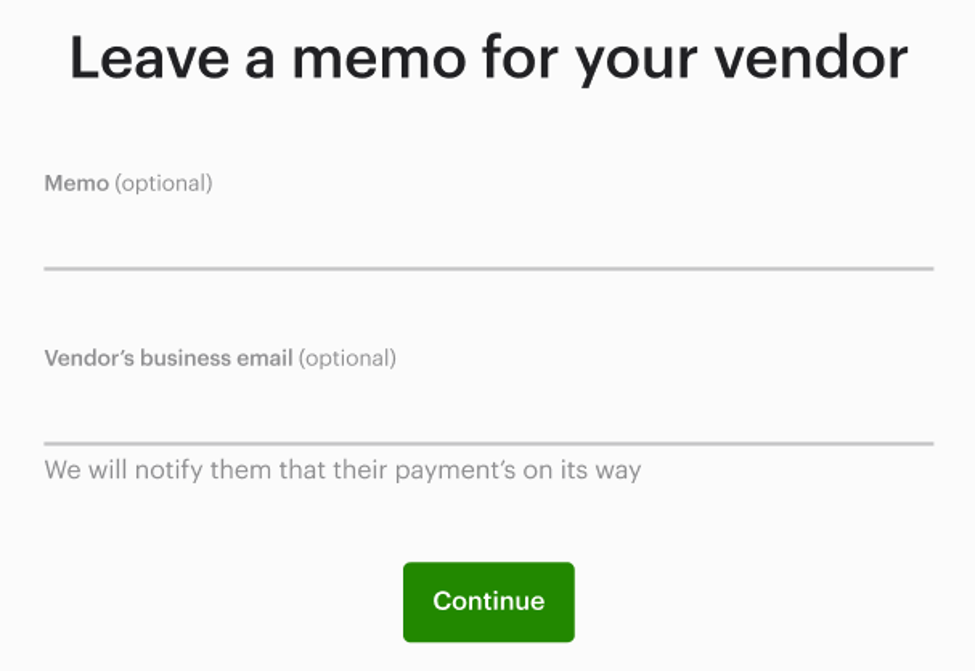
We recommend leaving a memo for your vendor with the invoice number and adding their email address. Click Continue.
- Make sure the details are correct under Review and confirm.
-
Click Confirm and schedule payment.
10. And that’s it. Your payment is on its way.